

Custom USB 3.2 Gen 1 Type-C Cables: What to Look For Before Ordering
2026-10-28
Most custom USB-C cable failures aren’t caused by the connector—they’re caused by the quiet choices made during design. A marginal wire gauge here, a skipped shielding layer there, and suddenly your USB 3.2 Gen 1 Type-C cable can’t hold a stable link beyond a meter. If you’re tired of spec sheets that look identical but perform nothing alike, this guide is for you. At EBCYX, we’ve mapped out the non-negotiables—from conductor sizing and impedance control to overmold stress testing—so you can order with confidence instead of crossing your fingers.
Don't Guess the Length—Measure Twice, Order Once
A tape measure costs less than a return shipment. When you need material cut to a specific length—trim, weatherstripping, wire, tubing—take the measurement from the actual surface, not from memory or a rough sketch. Run the tape flat, account for inside corners, and write down the longest point if the space isn't square. Then measure it again, preferably from the opposite end. If both numbers match, you're ready to order.
Small errors stack up fast. A quarter-inch gap at one end can turn into a visible seam or a wasted offcut. Ordering a little extra sounds safe, but too much surplus often ends up in a drawer or the bin. By measuring twice and ordering once, you skip the waiting time for replacements and avoid paying twice for the same job.
USB 3.2 Gen 1 Speed: Verify Before You Trust the Label
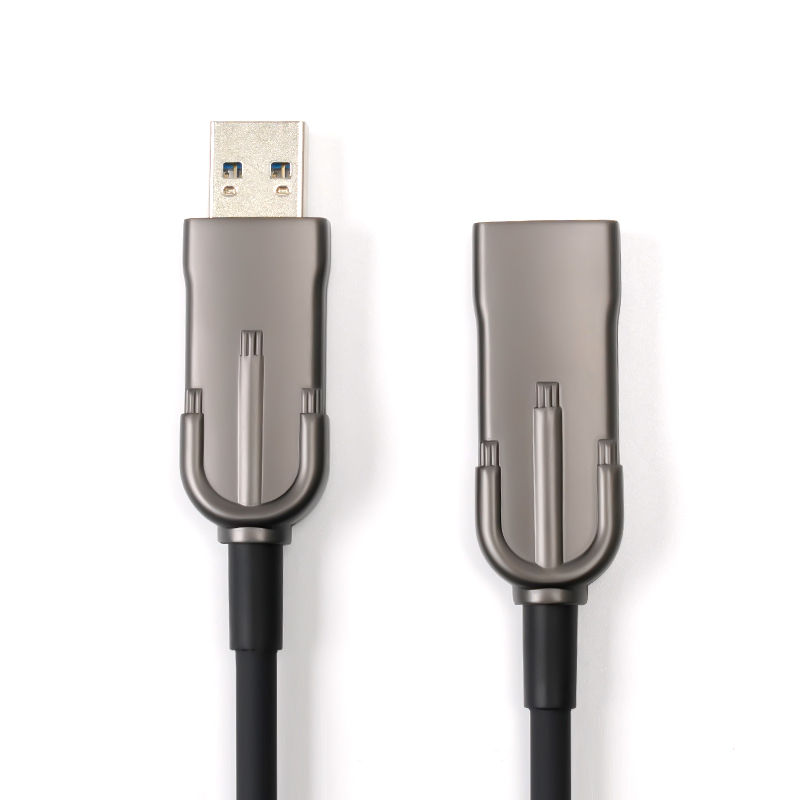
USB 3.2 Gen 1 might sound like a meaningful upgrade, but it is the same 5 Gbps connection that was once called USB 3.0 and later USB 3.1 Gen 1. The newer name does not add any speed; it only updates the label. If you assume the port will run at 10 Gbps because of the 3.2 in the title, you are likely to be disappointed when a large file transfer crawls along at the old rate.
The confusion grows because USB 3.2 includes three separate speed tiers: Gen 1 at 5 Gbps, Gen 2 at 10 Gbps, and Gen 2x2 at 20 Gbps. A cable or drive marked USB 3.2 without the generation number often defaults to the slowest option, which quietly keeps many budget accessories stuck at 5 Gbps. Before you trust the packaging, look for the fine print that says Gen 1, Gen 2, or the exact Gbps figure.
A practical check is to ask what the hardware actually needs. For a mouse, keyboard, or basic flash drive, 5 Gbps is plenty. But for an external SSD or high-resolution video capture, that same label becomes a bottleneck. Checking the generation and data rate instead of relying on the version number can save you from buying a fast port that is really just a rebadged old standard.
Power Delivery: Amps, Volts, and Wattage That Actually Matter
Most spec sheets throw a wall of numbers at you, but only a few actually change how your devices charge. Voltage is the push, current is the flow, and wattage is the product of the two. For everyday use, you rarely need to track amps on their own — what matters is whether the charger can sustain the voltage your device requests while delivering enough current to hit its peak wattage. A 65W charger that drops to 9V under load will leave a laptop trickling, while a 45W brick holding steady at 20V will top it up faster than the numbers suggest.
The real story is in the fine print: USB-C Power Delivery negotiates voltage steps like 5V, 9V, 15V, and 20V, and your device picks whichever combination gives it the highest wattage it can safely take. So instead of fixating on amp ratings, look for a charger that lists the current at each voltage tier. If your phone asks for 9V at 3A (27W) and your charger only offers 9V at 2A, you'll get 18W — no matter how many total watts the brick claims on the box.
Heat is the silent killer here. A cheap charger might hit its rated wattage for a minute, then throttle down as components overheat. That's why two chargers both labeled "65W" can behave completely differently: one will hold 20V at 3.25A for an hour, the other will sag to 12V after ten minutes. When in doubt, ignore the marketing number and test what your device actually draws from the wall. That reading — not the sticker — is what your battery feels.
Connector Durability: Why Strain Relief Is Non-Negotiable
Most connector failures never happen at the gold-plated contact itself—they happen a few millimeters behind it, where the cable enters the housing. That junction is a stress concentrator: every bend, tug, or vibration transmits force directly into the solder joints or crimp zones. Without a proper strain relief mechanism, those micro-movements gradually work-harden the copper strands until they snap, often leaving a connector that looks perfectly intact on the outside but fails intermittently in the field.
Strain relief isn't just a rubber boot or a molded overmold—it's a deliberate engineering choice that redistributes mechanical energy away from the weakest point. A well-designed relief, whether it's a spiral wrap, a grommet with a tapered flex zone, or a backshell with a cable clamp, forces the cable to bend along a controlled radius rather than kinking at the termination. This becomes non-negotiable in applications with constant movement: robotic arms, handheld scanners, automotive harnesses, or any cable that gets plugged and unplugged daily. The difference between a connector that survives ten thousand flex cycles and one that dies at five hundred is almost always the quality of its strain relief.
What makes this easy to overlook is that strain relief failures are rarely dramatic. There's no loud pop, no visible arc. Instead, you get a slow degradation—higher contact resistance, occasional signal dropouts, and eventually a dead channel that costs far more to troubleshoot than a five-cent strain relief would have cost to include. Designers who treat strain relief as an afterthought often pay for it in warranty claims and field service calls. The smart approach is to treat it as a load-bearing component from the first CAD sketch, not a cosmetic add-on.
Shielding and Signal Integrity: The Hidden Difference
Most engineers assume shielding is about keeping noise out, but the real impact often shows up in signal integrity. When a cable or connector is shielded, the return current path changes, which alters impedance and can introduce resonances if the shield isn't bonded properly at both ends. This hidden difference means two cables with identical specs can behave very differently in a real system.
At higher frequencies, the shield becomes part of the signal path, not just a barrier. Current flowing on the inner conductor induces equal and opposite current on the shield's inner surface. If there's any asymmetry or gap in the shield termination, that current has to find another route, causing common-mode radiation and skew. The result is intermittent errors that don't show up on a basic continuity test.
The practical takeaway is to evaluate shielding as a circuit element, not an afterthought. Check shield coverage, termination quality, and the loop area created by pigtails. Small changes in how a drain wire is connected can shift eye patterns and bit error rates. That's the hidden difference: shielding can either preserve signal integrity or quietly destroy it, depending on details most datasheets omit.
Custom Finish: Braiding, Color, and Feel Without Compromise
The braiding isn't just a pattern—it's engineered around how the product actually gets handled. Tension, strand count, and crossing angle are adjusted for each order, so the finished surface feels dense and consistent without any loose spots or uneven ridges.
Color is treated as a material property, not an afterthought. Custom dye lots are matched under multiple light sources, and the final coat or weave locks in the tone so it doesn't shift after repeated flexing or exposure. That means the rich blue you approve is the same blue that arrives months later.
The tactile result is deliberate. Whether the target is a soft, matte grip or a slick, tightly woven shell, the finish is tuned to match the intended use. You don't have to choose between a look you want and a feel that actually works—both are built into the same process.
FAQ
Check the wire gauge and current rating. For most phones and small peripherals, 22-24 AWG power conductors are fine, but if you're connecting something like a portable monitor or a laptop, ask for 20 AWG or lower and confirm the cable can handle 3A at 5V (or 5A if it's e-marked for higher USB PD profiles).
Yes, it's one of the biggest factors. USB 3.2 Gen 1 runs at 5Gbps, but longer runs increase signal attenuation. For full speed, stay under 1 meter with standard twisted pairs, or if you need a longer cable, specify thicker shielded twisted pairs and possibly an active signal booster.
Double-layer shielding—usually foil plus a copper braid—is the sweet spot. It keeps crosstalk and interference from killing your data rate, especially if the cable will sit near power bricks or other noisy electronics.
Absolutely, many cable shops let you mix connector types on each end. Just make sure the USB-A side is wired to the 3.2 Gen 1 spec (SS pins present) otherwise the whole assembly drops to USB 2.0 speeds.
Look for reinforced joint construction—like overmolded strain relief that extends beyond the metal shell—and specify a bending cycle rating if the shop offers it. A good custom cable should survive at least 5,000 bends before the wires start to fatigue.
If you want any PD charging above 3A, the cable needs an e-marker chip programmed for 5A and the correct USB PD version. Without it, the charger will default to a safe low-current mode and your device will charge slowly.
When you need a nonstandard length, a specific color, a right-angle plug on one side, or a cable that fits a tight enclosure, custom is often the only route. You also get control over jacket material—silicone for flexibility, PVC for cost, or TPE for a compromise.
Ask the vendor for a signal integrity test report, typically showing eye diagram compliance at 5Gbps. Or if you have the gear, run a loopback test with a USB 3.2 Gen 1 certified device and check for CRC errors under load.
Conclusion
Ordering custom USB 3.2 Gen 1 Type-C cables starts with two simple rules: never guess the length, and never assume the label matches real-world speed. Measure the exact path through conduits or around desk edges—twice if needed—because a cable too short wastes money while one too long creates clutter. Then verify throughput claims; Gen 1 should deliver 5 Gbps, but only with proper twisted-pair construction and no shortcuts in conductor gauge. Power delivery is equally critical: check that wattage aligns with your device’s demands, accounting for voltage drop over longer runs. A cable rated for 3A at 20V may sag far below expectations after three meters. If you need to charge a laptop while transferring data, confirm both functions simultaneously under load, not just on paper.
On the physical side, strain relief where the cable meets the connector is non-negotiable—without a beefy, flexible boot, repeated bending will crack solder joints within weeks. Shielding also separates a dependable cable from one that randomly disconnects or corrupts files; look for braided copper plus foil, with the shield properly terminated at both ends. Finally, customize the finish: braiding material affects both flexibility and tangling, while color coding helps distinguish multiple identical-length cables in a drawer. Don’t compromise on feel—a stiff jacket makes every wrap a fight. Combining solid engineering with the right aesthetic turns a commodity item into a tool you actually enjoy using daily.
Contact Us
Contact Person: David Yang
Email: [email protected]
Tel/WhatsApp: 8615814734054
Website: https://www.ebcyx.com/